
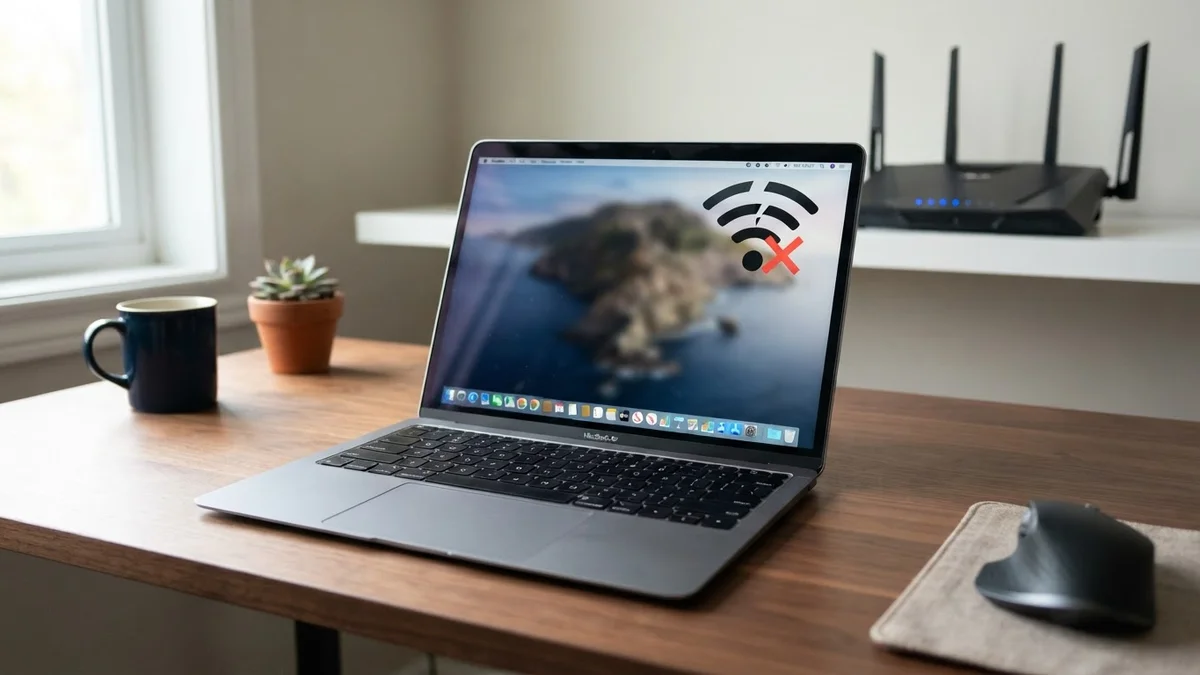
Is your Mac Wi-Fi keeps disconnecting problem driving you crazy? One minute you are on a video call, the next minute the Wi-Fi icon goes blank and pages stop loading. This is one of the most common Mac problems, especially after a macOS update or when you move between networks.
The good news is that you can fix it yourself in most cases. Below are 12 tested fixes, starting with the quickest and moving to the more advanced ones.
Why Does My Mac Keep Disconnecting from Wi-Fi?
Wi-Fi drops on a Mac usually come from one of these causes:
- A glitch after a macOS update
- Old or corrupted network settings
- Router problems like outdated firmware or a crowded channel
- Interference from Bluetooth devices, USB-C hubs or microwaves
- Private Wi-Fi address or VPN conflicts
- Power-saving settings that turn Wi-Fi down during sleep
Quick Diagnosis Table
| Symptom | Most likely cause | Best fix to try first |
|---|---|---|
| Only one Mac drops, other devices fine | Mac settings | Fix 4 and Fix 6 |
| All devices drop | Router or internet | Fix 2 and Fix 10 |
| Drops after sleep | Power settings | Fix 8 |
| Drops when using USB-C hub or Bluetooth | Interference | Fix 9 |
| Started after macOS update | Corrupted settings | Fix 6 and Fix 7 |
Fix 1: Turn Wi-Fi Off and On
Click the Wi-Fi icon in the menu bar, turn Wi-Fi off, wait 10 seconds, then turn it on again. It sounds simple, but it resets the wireless chip and fixes many temporary drops.
Fix 2: Restart Your Mac and Router
- Shut down your Mac.
- Unplug your router and modem for 30 seconds.
- Plug them back in and wait until all the lights are stable.
- Turn on your Mac and reconnect.
Fix 3: Update macOS
Apple often fixes Wi-Fi bugs in small updates. Go to System Settings > General > Software Update and install any available updates.
Fix 4: Forget the Network and Reconnect
- Open System Settings > Wi-Fi.
- Click the three dots or Details next to your network.
- Select Forget This Network.
- Reconnect and enter the password again.
Fix 5: Turn Off Private Wi-Fi Address
macOS uses a private (rotating) Wi-Fi address for privacy. Some routers and office networks don’t handle this well and keep kicking your Mac off.
- Go to System Settings > Wi-Fi.
- Click Details next to your network.
- Set Private Wi-Fi address to Off or Fixed.
- Click OK and reconnect.
Fix 6: Renew DHCP Lease
- Open System Settings > Wi-Fi > Details for your network.
- Click TCP/IP.
- Click Renew DHCP Lease, then OK.
This gives your Mac a fresh IP address and fixes conflicts with other devices.
Fix 7: Remove Wi-Fi Network Preference Files
If nothing works, delete the network settings files so macOS can create new ones. Back up your Mac first.
- In Finder, press Shift + Command + G.
- Type /Library/Preferences/SystemConfiguration/ and press Return.
- Move these files to your Desktop (as a backup): com.apple.airport.preferences.plist, NetworkInterfaces.plist and preferences.plist. Not every file exists on every macOS version.
- Restart your Mac and reconnect to Wi-Fi.
You will need to re-enter your Wi-Fi passwords afterward.
Fix 8: Stop Wi-Fi Drops After Sleep
- Open System Settings > Battery (or Energy on desktop Macs).
- Click Options.
- Set Wake for network access to Always or Only on Power Adapter.
Also try turning off Low Power Mode while testing.
Fix 9: Remove Interference
- Unplug USB-C hubs and USB 3 devices one by one. Cheap hubs can interfere with the 2.4 GHz band.
- Move your Mac closer to the router.
- Turn off Bluetooth for a few minutes to see if the drops stop.
- Connect to the 5 GHz or 6 GHz band if your router has one.
Fix 10: Change Router Settings
- Update router firmware from its admin page or app.
- Change the Wi-Fi channel to a less crowded one.
- Give the 2.4 GHz and 5 GHz bands different names so your Mac doesn’t keep switching.
- Make sure the router uses WPA2 or WPA3 security.
Fix 11: Use Wireless Diagnostics
macOS has a built-in Wi-Fi diagnostic tool:
- Hold the Option key and click the Wi-Fi icon.
- Select Open Wireless Diagnostics.
- Follow the steps. Choose Monitor my Wi-Fi connection to record drops.
The report shows signal strength, noise and errors, which helps you pinpoint the problem.
Fix 12: Reset Network Settings and Check VPN Apps
- Disable or uninstall VPN, firewall or antivirus apps for a test. They sometimes install network filters that cause drops.
- Check System Settings > General > Login Items & Extensions > Network Extensions and turn off anything unused.
- As a last step, boot into Safe Mode. If Wi-Fi is stable there, a third-party app is the cause.
If your Mac also feels slow or freezes while the Wi-Fi drops, see our guide on how to stop the spinning beach ball on Mac.
When It Might Be Hardware
If Wi-Fi still drops in Safe Mode, on different networks and after all fixes above, the Wi-Fi hardware or antenna might be faulty. Run Apple Diagnostics (hold D at startup on Intel Macs, or hold the power button and press Command + D on Apple silicon) and contact Apple Support if errors appear.
Frequently Asked Questions
Why does my Mac Wi-Fi disconnect when other devices stay connected?
The problem is likely in your Mac’s settings. Forget the network, turn off Private Wi-Fi address and renew the DHCP lease.
Why does my MacBook lose Wi-Fi after sleep?
Power-saving settings can turn Wi-Fi down. Set Wake for network access to Always and keep macOS updated.
Can a USB-C hub cause Wi-Fi problems on a Mac?
Yes. Some hubs create interference on the 2.4 GHz band. Unplug them or connect to 5 GHz instead.
Will resetting NVRAM fix Wi-Fi on a Mac?
On Intel Macs, resetting NVRAM can help with some network issues. On Apple silicon Macs, a simple restart does the same job.
Conclusion
When your Mac Wi-Fi keeps disconnecting, start with the easy fixes: restart, forget the network and turn off Private Wi-Fi address. If the drops continue, renew your DHCP lease, delete the old network files and check your router. With these 12 fixes, almost every Wi-Fi problem on a Mac can be solved at home.
