
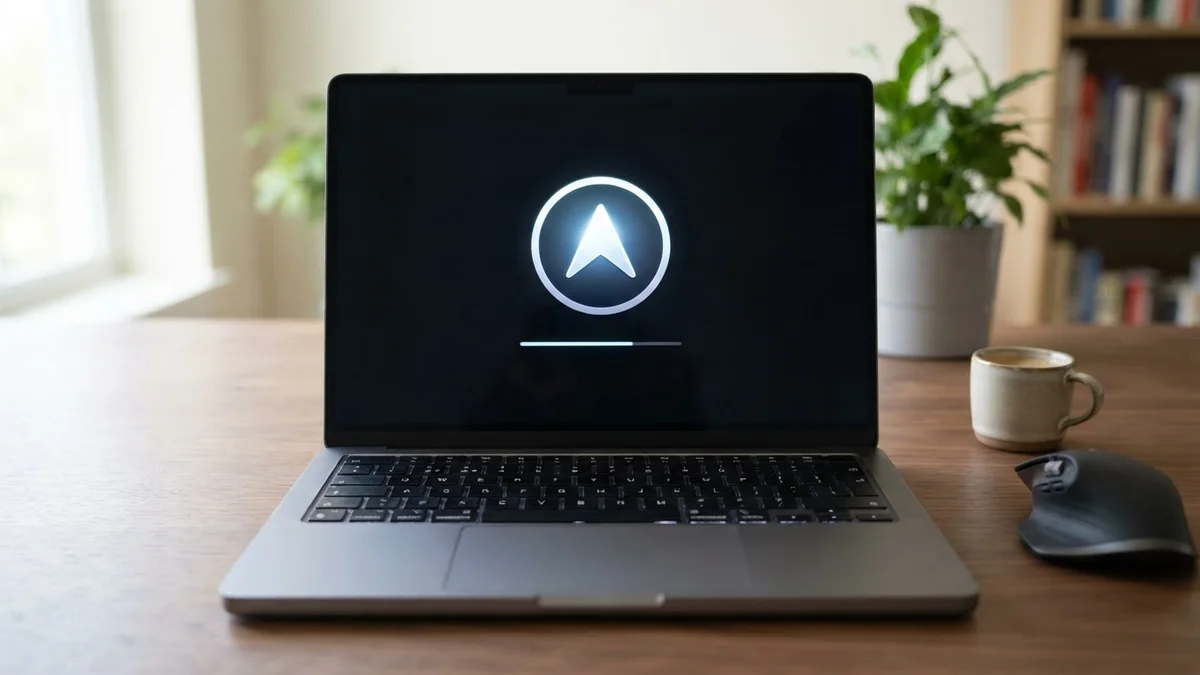
Apple released macOS 27 in September 2026, but many Mac owners open Software Update and see nothing, or only a smaller Tahoe update. If you can’t update to macOS 27, don’t panic. In most cases, the reason is simple: your Mac isn’t compatible, or something small is blocking the download.
In this guide, you will learn why the macOS 27 update isn’t showing on your Mac, how to check compatibility in 30 seconds, how to fix common update errors, and what to do if your Mac is no longer supported.
Why macOS 27 Is Not Showing on Your Mac
Here are the most common reasons, from most to least likely:
- Your Mac has an Intel processor. macOS 27 runs only on Macs with Apple silicon (M1 chip or newer). Intel Macs stay on macOS Tahoe 26.
- Not enough free storage. The installer needs a lot of free space to download and unpack the update.
- Your Mac is managed by a school or company. Admins can delay or block major updates.
- Beta or deferral settings. If you joined a beta program or your Mac is set to delay updates, the update may not appear.
- Apple’s servers are busy or your network blocks the download.
Step 1: Check If Your Mac Supports macOS 27
- Click the Apple menu in the top-left corner.
- Select About This Mac.
- Look at the line called Chip or Processor.
If it says Apple M1, M2, M3, M4 (or any newer Apple chip), your Mac can run macOS 27. If it says Intel, your Mac can’t install macOS 27, no matter what you try.
Quick compatibility table
| Your Mac’s chip | Can it install macOS 27? | Latest macOS available |
|---|---|---|
| Apple M1 or newer | Yes | macOS 27 |
| Intel (supported by Tahoe) | No | macOS Tahoe 26 |
| Older Intel models | No | An older macOS version |
Step 2: Free Up Enough Storage
A full macOS upgrade can fail if your disk is almost full. As a rule of thumb, keep at least 25–35 GB free before upgrading.
- Go to Apple menu > System Settings > General > Storage.
- Check how much space is available.
- Use the recommendations to remove large files, empty the Trash, and delete old iPhone backups.
Big video files, old installers in the Downloads folder and unused apps are the quickest wins.
Step 3: Check Software Update Settings
- Open System Settings > General > Software Update.
- Click the (i) next to Automatic Updates and make sure checks for updates are turned on.
- Look for Beta Updates. If it is set to an old beta program, set it to Off to see the public release.
- Click Check for Updates again. Sometimes the macOS 27 upgrade appears under Other Updates or as an Upgrade Now button.
If your Mac belongs to work or school, look for a message that says it is managed. In that case, ask your IT administrator.
Step 4: Fix “macOS 27 Download Stuck” or Failing
If the update shows up but won’t download or install, try these fixes in order:
- Restart your Mac and try again. This clears many temporary glitches.
- Switch networks. Use a stable Wi-Fi network or a wired connection. VPNs and some public networks block Apple’s servers.
- Check Apple’s System Status page to make sure Software Update isn’t having problems.
- Plug in your MacBook. Updates usually need power or enough battery.
- Boot into Safe Mode and run the update from there. Safe Mode loads only essential software, which avoids conflicts.
- Download the full installer from the Mac App Store if Software Update keeps failing.
If your Mac gets stuck at startup during the update, follow our guide on how to fix a Mac startup problem.
What If Your Mac Is Intel and Can’t Update?
macOS Tahoe 26 is the final macOS version for Intel Macs. That sounds bad, but your Mac doesn’t stop working. Here’s what it means:
- Your Mac keeps working normally with all the apps you have today.
- Security updates: Based on Apple’s past pattern, older macOS versions usually receive security updates for around two more years after a new version launches. Apple hasn’t promised exact dates, so keep installing Tahoe updates when they appear.
- New features: You won’t get the new macOS 27 features such as the redesigned Siri.
- App support: Over time, developers will drop support for older systems. Browsers like Chrome and Firefox usually support older macOS versions for a while after Apple stops.
Your options
- Keep using your Intel Mac on Tahoe as long as it receives security updates.
- Upgrade to an Apple silicon Mac. Even a used M1 MacBook Air is much faster than most Intel MacBooks and supports macOS 27.
- Use your old Mac for lighter tasks like browsing, documents and streaming.
Avoid unofficial “patcher” tools that force new macOS versions onto unsupported Macs. Since macOS 27 is built for Apple silicon only, these tricks don’t work for it, and they can leave your Mac unstable.
Should You Upgrade to macOS 27 Right Away?
If your Mac is compatible, upgrading is usually safe, but consider these tips:
- Back up with Time Machine first. If anything goes wrong, you can restore your Mac.
- Check your important apps. Make sure apps you depend on for work support macOS 27. If you still use older Intel-only apps, check with their developers before upgrading.
- Wait for the first bug-fix update if your Mac is critical for work. Early releases sometimes have bugs that Apple fixes within a few weeks.
Frequently Asked Questions
Why can’t I see macOS 27 in Software Update?
Most likely your Mac has an Intel chip, or it’s managed by an organization. Check About This Mac. If the chip is Apple silicon, free up storage and turn off beta updates.
Can an Intel Mac run macOS 27?
No. macOS 27 requires an Apple silicon Mac (M1 or newer). macOS Tahoe 26 is the last version for Intel Macs.
How much space do I need to update to macOS 27?
Keep at least 25–35 GB of free space to be safe. The download itself is smaller, but the installer needs extra room to unpack.
Is it safe to keep using macOS Tahoe?
Yes, as long as you keep installing the security updates Apple releases for it. Use a modern browser and keep your apps up to date.
How long does the macOS 27 update take?
Usually 30 to 60 minutes, depending on your internet speed and Mac model. Your Mac may restart several times.
Final Thoughts
If you can’t update to macOS 27, first check your Mac’s chip. Intel Macs can’t install it, but they keep working on macOS Tahoe. If you have an Apple silicon Mac, free up storage, turn off old beta settings, restart and try again. Back up your Mac before any big update, and you will be ready for macOS 27 with no surprises.
